
Ingestion Dashboard
See every resume. Fix every failure.
Resumes arrive as email attachments and OneDrive files, from a few hundred a week to tens of thousands in a backfill. The SeerHive pipeline collects, de-duplicates, checks, classifies and stores them in the background. The Ingestion Dashboard is how people see and steer it: whether resumes are flowing, where any single file ended up, and what to do when something fails. It replaces database queries, server-log digging and "can someone check if that resume came through?" messages.
- Screens
- 5
- Sources
- Email · OneDrive
- Refresh
- 10 to 30 seconds
What it does.
Pipeline health at a glance
Total, completed, failed, duplicate, non-resume and in-flight counts, an ingestion-volume chart for the range you pick, and a recent-activity feed. It refreshes every 30 seconds.
Follow any resume end to end
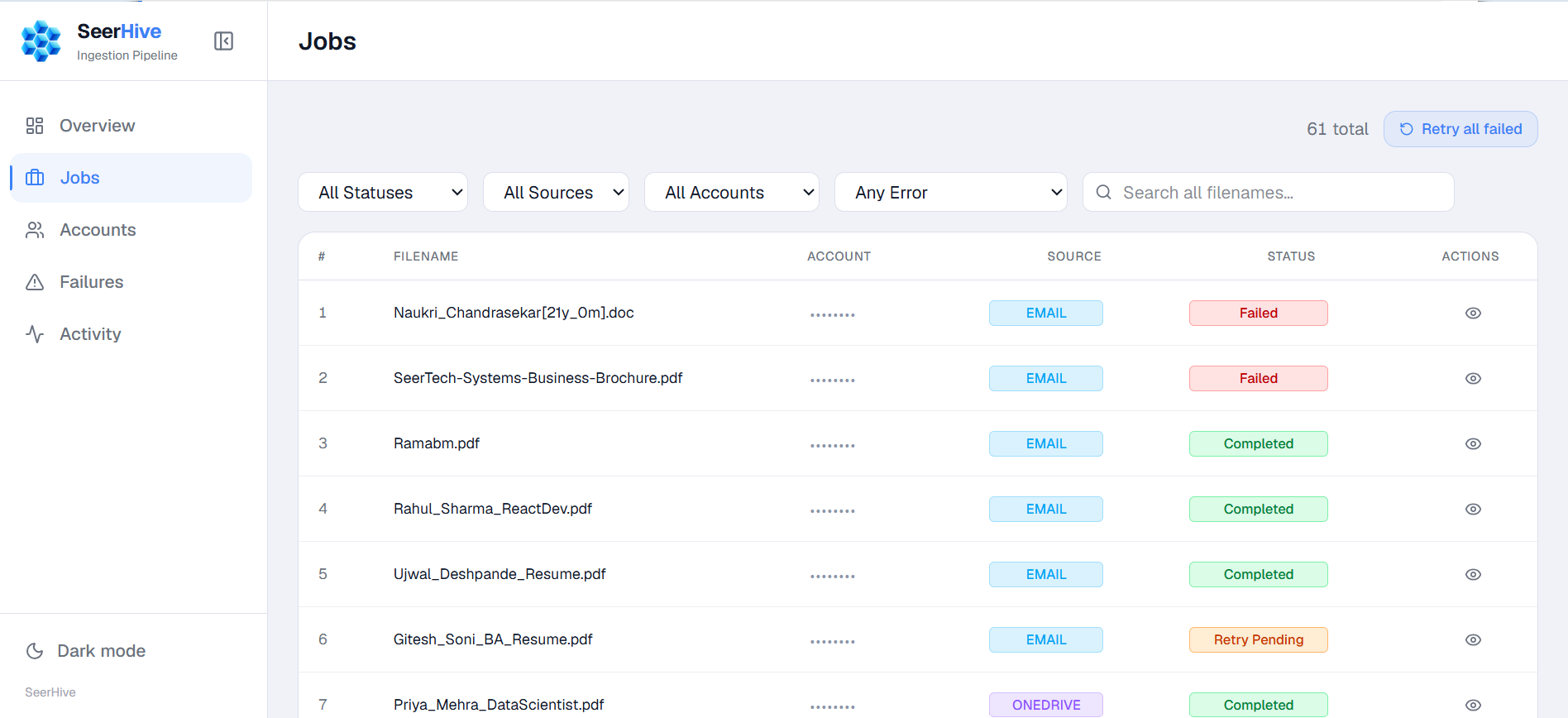
Search the whole dataset on the server by file name or job ID, not just the page you happen to be on. Filter by status, account, source, error stage and date range.
A timeline for every job
Open a job to see a stage-by-stage timeline, its outcome, the error explanation and where it came from. Share a link such as /jobs?job=<id> to hand a colleague the exact record.
Duplicates traced to their original
Around 60% of incoming files are copies of resumes already held. They are shown as a normal outcome, not a red error, and each links back to the original document.
Failures in plain language
A technical failure becomes a title, an explanation and a suggested next step. The raw detail stays available, tucked away, for engineers.
Retry only where it can work
If retrying provably cannot help, the screen offers resolution instead of a retry that would fail the same way.
Resolve with a record
Resolve a failure as Not a resume, Unprocessable or Resolved. The name of whoever resolved it is recorded for audit.
Bulk actions that stay safe
Retry all pending failures in one go. Bulk resolve takes explicit IDs, never a blanket filter, and reports exactly which succeeded and which did not.
Control what gets scanned
A card for every connected mailbox and OneDrive account with its true lifecycle phase, including Draining. Switch accounts on and off with automatic roll-back if the server refuses.
Honest feedback on syncs
Trigger a sync and be told it started, not that it finished. Anything that runs for minutes or hours sits behind a confirmation that names the cost.
A live activity feed
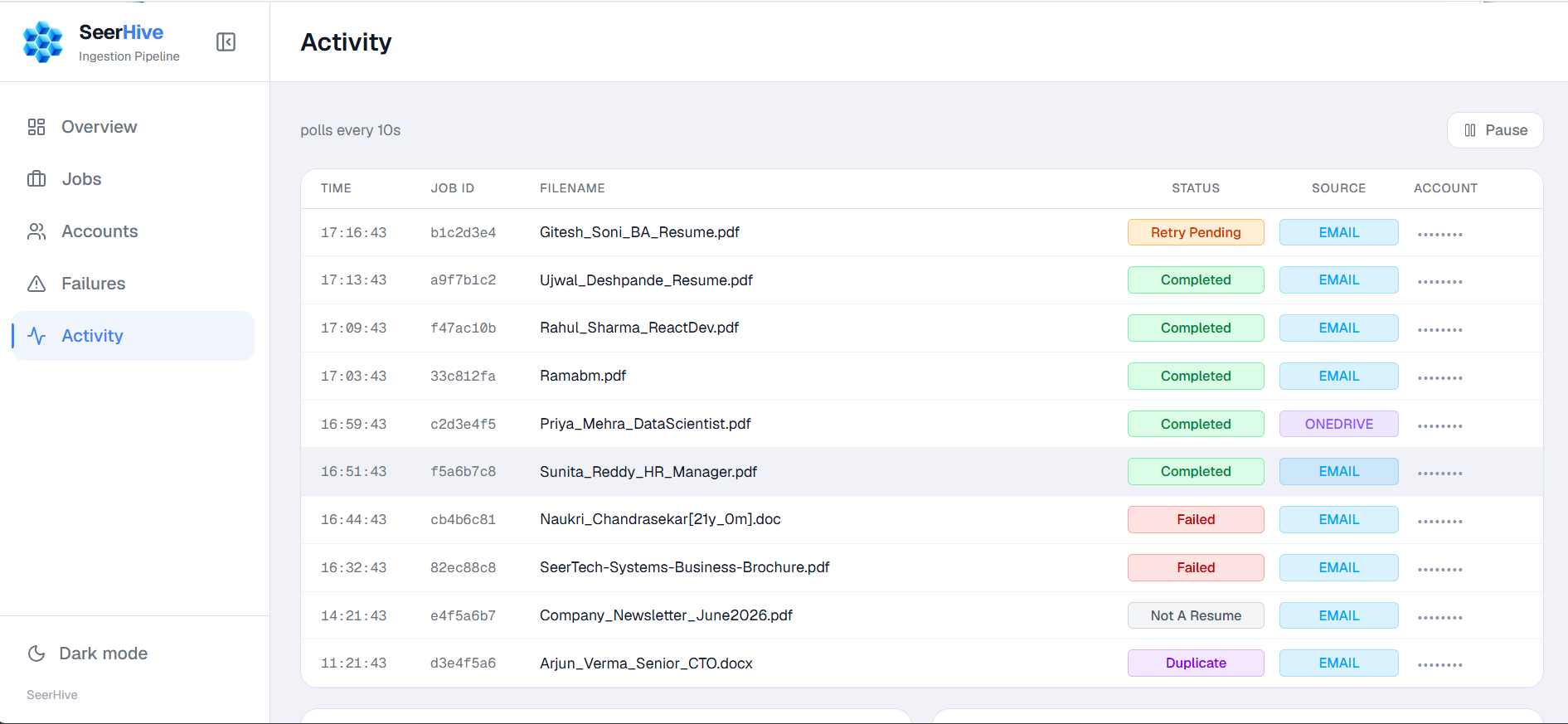
A log stream that refreshes every 10 seconds and can be paused while you read, with charts of recent throughput and outcomes.
Numbers you can trust
A connection banner tells you when the backend is unreachable. In production it shows empty data rather than invented figures, and demo data is clearly labelled.
Local times and clean formatting
Timestamps are converted from UTC for display, and missing values show a dash instead of "undefined".
Dark and light themes
Dark by default, with toast notifications for the result of every action.
Follow a thousand files through the pipeline, and see every exit.
Most files never reach the end, and that is normal. Choose a stage to see what happens there, what leaves, and which dashboard screen shows it.
Collect
1,000 files
De-duplicate
400 new
↓ About 60% duplicatesNormal, linked to the original
Check
360 resumes
↓ Not a resumeNormal outcome
Classify
348 classified
↓ FailuresRetry or resolve
Store
348 stored
De-duplicate
Files that match a resume already held are set aside. Around 60% of incoming files are copies, so this is the biggest exit in the pipeline.
On the dashboard
Jobs shows each duplicate as a normal outcome and links it back to the original document.
An illustration with made-up sample figures, not a live pipeline.
The same failure, said so a recruiter can act on it.
A failure arrives as four layers of jargon around one useful sentence. The dashboard keeps the sentence and tucks the jargon away. Flip the switch to compare.
What the log says
Spring Boot /analyze endpoint returned 503 Service Unavailable after 3 retries.
What the dashboard says
The classification service had a problem
The resume was read correctly, but the service that classifies it returned an error on every attempt.
Next stepRetry it. If it keeps failing, tell engineering the classification service is erroring.
The log text mirrors the reasons shown on the Failures screen. The plain-language wording is an illustration of the idea.
Six screens, explained.
Choose a screen to see it as it appears in the product, and what it does.
Swipe the screen sideways to see all of it
See whether resumes are flowing
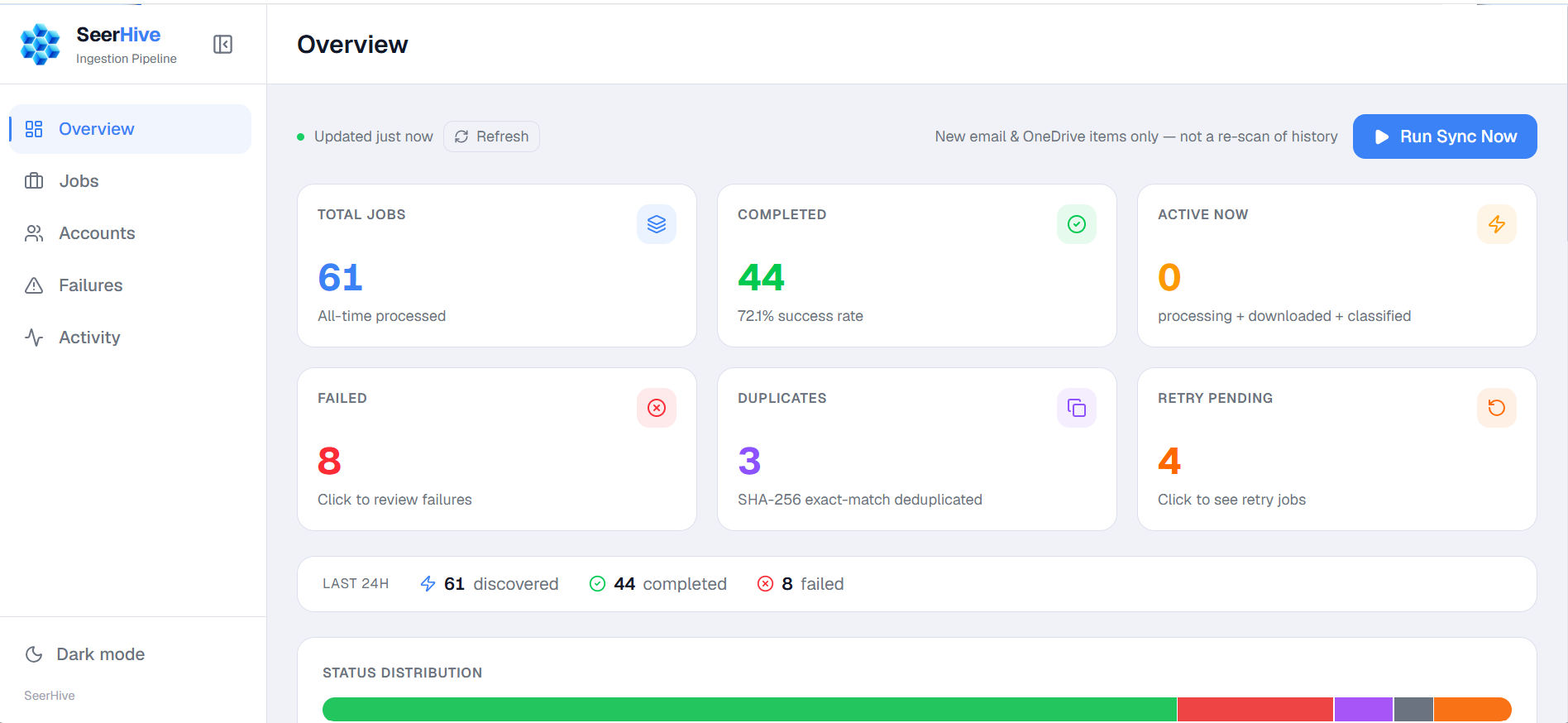
Six counts answer the first question every morning: how many jobs in total, how many completed, how many are active now, how many failed, how many were duplicates and how many are waiting for a retry. A strip below shows the last 24 hours and a bar shows how all jobs split by status.
- Total, completed, active, failed, duplicate and retry-pending counts
- Success rate and a last-24-hours summary
- Click the failed count to go to the failures
- Run Sync Now picks up new email and OneDrive items only, not a re-scan of history
Up and running in 4 steps
- 1
Check the overview
See whether resumes are flowing and what the pipeline has done overall.
- 2
Find the resume
Search by file name or job ID, then open the job for its timeline.
- 3
Read what happened
Get the outcome in a sentence, and the original behind any duplicate.
- 4
Act on it
Retry, resolve, trigger a sync or switch an account on or off.
Made for the people who keep resumes flowing
Anyone who needs to know whether resumes arrived, why one did not, and what to do about it.
Recruitment operations
Confirm a candidate's resume arrived, see why one did not, and keep mailboxes and drives scanning.
Pipeline operators
Spot stalls, retry backlogs and failure spikes quickly, then act.
Support and helpdesk
Answer "where is this resume?" in seconds with a shareable link.
Engineering and QA
Debug a single job with its timeline, stage and technical detail.
Team leads and managers
Check throughput and health without asking for a report.
Data and compliance owners
See who resolved which failure, and trace duplicates to their originals.
See Ingestion Dashboard in action.
Reach the SeerHive team directly and we will take it from there.
Talk to us